Sales and LeadsNew
Turn property portal lead emails into WhatsApp conversations
Read portal lead notification emails, log the lead and open a WhatsApp chat in seconds. Pairs with the WhatsApp responder for qualification and viewings.
Em
 Op
OpAn always-on WhatsApp assistant for UAE and GCC businesses: answers in English or Arabic, qualifies the lead, books a slot and alerts your team.
Included in Pro and aboveStarter workspaces can read this template but not deploy it.
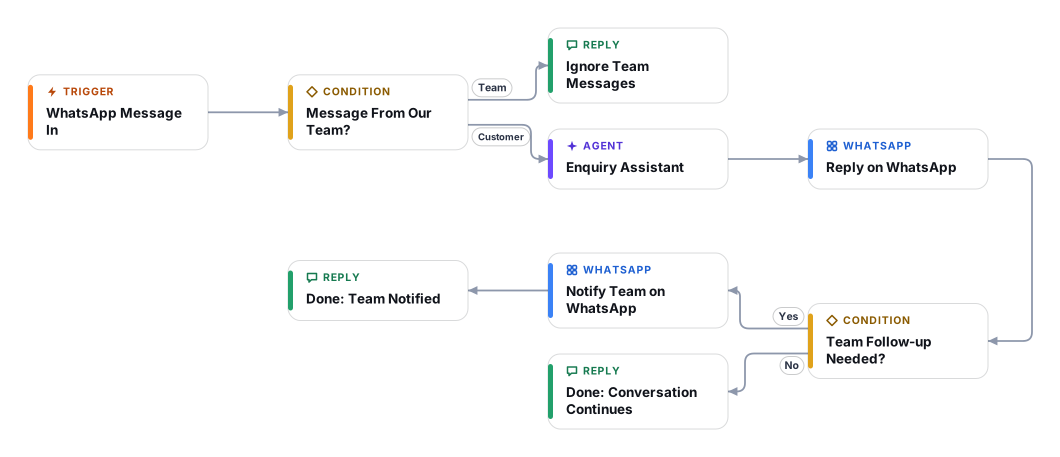
In the Gulf, the first business to reply on WhatsApp usually wins the customer. This template answers every message sent to your WhatsApp Business number within seconds, in English or Arabic, even at night and on weekends.
The assistant asks one or two friendly questions at a time to find out what the person needs, their rough budget and timeline, then offers free slots from your Google Calendar and books the one they confirm. Business facts such as services, prices, locations and listings come only from a Google Sheet you control, and the assistant is instructed never to invent anything that is not in it. Conversations are remembered per customer, so people can reply an hour or a day later.
When a lead is qualified, a booking is made, or a customer needs a person (a complaint, a price negotiation, an angry message), your team gets a WhatsApp summary. The assistant is told not to discuss medical conditions, but it cannot stop a customer from typing them and every message is sent to the AI model, so do not use this template for healthcare; for clinic appointments use the patient booking template, which keeps clinical details away from the model. Customer messages are sent to your chosen AI model through OpenRouter.
The WhatsApp Business trigger starts a run for every incoming text message. Messages from your own team notification number are ignored so the bot never talks to itself.
It looks up your services, prices, FAQs or listings in the knowledge range of your Google Sheet. If the answer is not there it says the team will check, instead of guessing.
It answers the question first, then asks for what is missing: need, budget or scope, timeline and name. It mirrors the customer language, English or Arabic.
It checks your Google Calendar for free time, offers two or three slots, and only creates the event after the customer confirms one specific slot.
The reply is sent back to the customer within seconds from your WhatsApp Business number.
Qualified, booked or escalated conversations send a short summary with name, need, timeline and booked slot to your team WhatsApp number.
Anyone can read this page. Deploying the template into your workspace needs a Pro, Team or Enterprise plan. Starter workspaces can browse the library but cannot deploy templates. See plans.
You will connect Google Calendar, Google Sheets, OpenRouter API key, WhatsApp Business Cloud API, WhatsApp webhook app and fill in a few settings. Setup takes about 60 minutes. Your credentials stay in your own workspace.
Yes. Using the template creates a normal workflow in your workspace on the visual canvas. Rename it, edit any step, add approvals, test it and run it like any other workflow. It counts toward your plan’s workflow limit.
Yes. This workflow can send or write to external systems. Review the steps and test it with sample data before you activate it, and consider adding an approval step.
More workflows teams use alongside this one.
Read portal lead notification emails, log the lead and open a WhatsApp chat in seconds. Pairs with the WhatsApp responder for qualification and viewings.
OpScore every web-form lead against your ideal customer, log it to Google Sheets, create it in your CRM and alert sales about hot ones.
 HT+1
A WhatsApp booking assistant for clinics. The AI sees only a first name, appointment type and slot, never health data or phone numbers.
 Op
Every template is open to read. Deploying one into your workspace needs a Pro, Team or Enterprise plan; Starter workspaces can browse the whole library.