Customer SupportNew
Admissions enquiry bot on WhatsApp
Answer parent and applicant questions on WhatsApp from your own admissions documents, show each parent their own fee status, hand over when needed.
 Kn
 Op
Answer guest questions on WhatsApp and take table or slot reservation requests that your staff approve before they are confirmed.
Included in Pro and aboveStarter workspaces can read this template but not deploy it.
Guests ask the same things all day on WhatsApp: opening hours, the menu, parking, whether you have a table on Friday. This template gives your venue an assistant that handles the routine and leaves the decisions to your team.
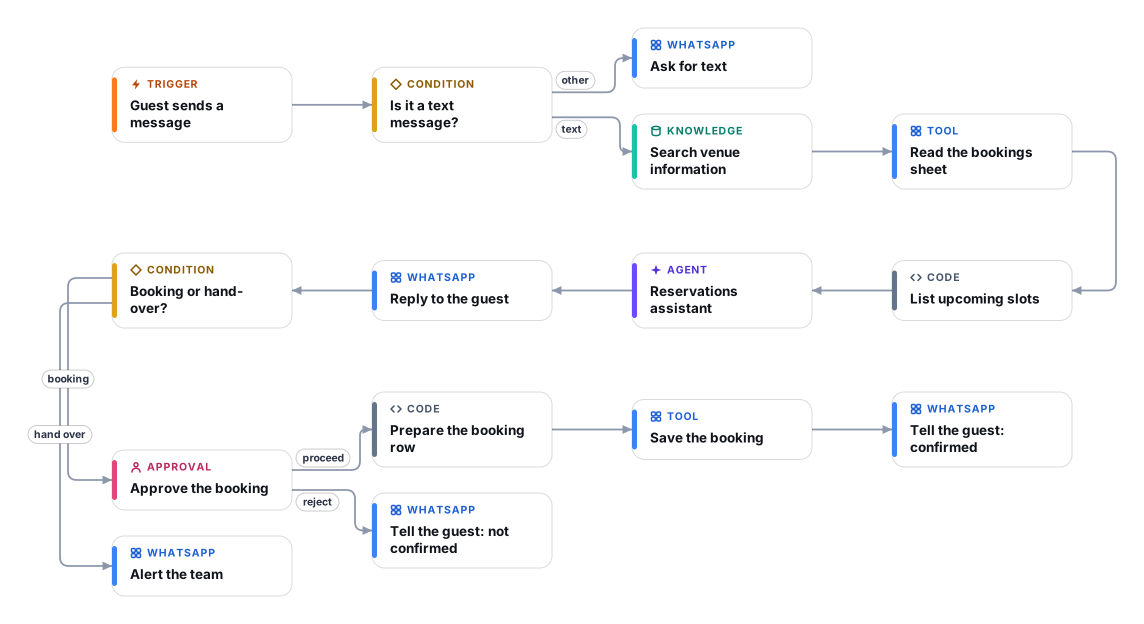
Each message is matched against your own venue documents, and the assistant answers only from them. For reservations it collects name, party size, date and time one question at a time, converts "tomorrow" into a real date, checks your opening hours and your capacity per time slot against the upcoming bookings in a Google Sheet, and then asks the guest to confirm the summary. It never says a booking is confirmed. The request pauses for a member of staff in the Approvals inbox: Proceed saves the booking to the sheet and tells the guest it is confirmed, Reject tells the guest it could not be confirmed.
Large parties, events, hotel room stays, changes, cancellations and complaints are passed to your staff WhatsApp number with the reason. Room availability and rates live in your property system, so this template does not quote them. Bookings are table or slot reservations.
The WhatsApp Trigger starts the workflow for each incoming message, and the guest's earlier messages are remembered so the conversation flows. Non-text messages get a polite request to type.
The Retriever searches your venue documents. The bookings sheet is read and a code step keeps only upcoming date, time and guest counts, without names or phone numbers.
It answers from your documents and collects name, guests, date and time, checking opening hours and capacity. It asks the guest to confirm the summary before sending the request on.
A confirmed request pauses for approval. Proceed saves the booking to the sheet and tells the guest it is confirmed. Reject tells the guest it could not be confirmed.
Large parties, events, room stays, changes, cancellations and complaints trigger a WhatsApp alert to your staff number with the reason and the guest's message.
Anyone can read this page. Deploying the template into your workspace needs a Pro, Team or Enterprise plan. Starter workspaces can browse the library but cannot deploy templates. See plans.
You will connect OpenRouter API key, WhatsApp Cloud API app (trigger), WhatsApp Cloud API access (send), Google Sheets and fill in a few settings. Setup takes about 45 minutes. Your credentials stay in your own workspace.
Yes. Using the template creates a normal workflow in your workspace on the visual canvas. Rename it, edit any step, add approvals, test it and run it like any other workflow. It counts toward your plan’s workflow limit.
No. This template includes a human approval step, so the workflow pauses and waits for a person before the action goes ahead. Every decision is kept in the run history.
More workflows teams use alongside this one.
Answer parent and applicant questions on WhatsApp from your own admissions documents, show each parent their own fee status, hand over when needed.
KnOpCheck each refund or return request against your policy, get a person to approve, then call your refund endpoint and message the customer.
HT+1Detect Arabic or English (including Arabizi), answer in the customer's language from your knowledge base, and hand over to your team when needed.
KnOpEvery template is open to read. Deploying one into your workspace needs a Pro, Team or Enterprise plan; Starter workspaces can browse the whole library.