Finance and AccountingNew
Extract invoices from email into Google Sheets with approval
Reads PDF or scanned invoices from a mailbox, checks the numbers, and logs each one to Google Sheets only after a person approves it.
Em Op
OpEmployees send a receipt photo on WhatsApp. AI reads and categorises it, they confirm, and big or doubtful ones go to a manager before Sheets.
Included in Pro and aboveStarter workspaces can read this template but not deploy it.
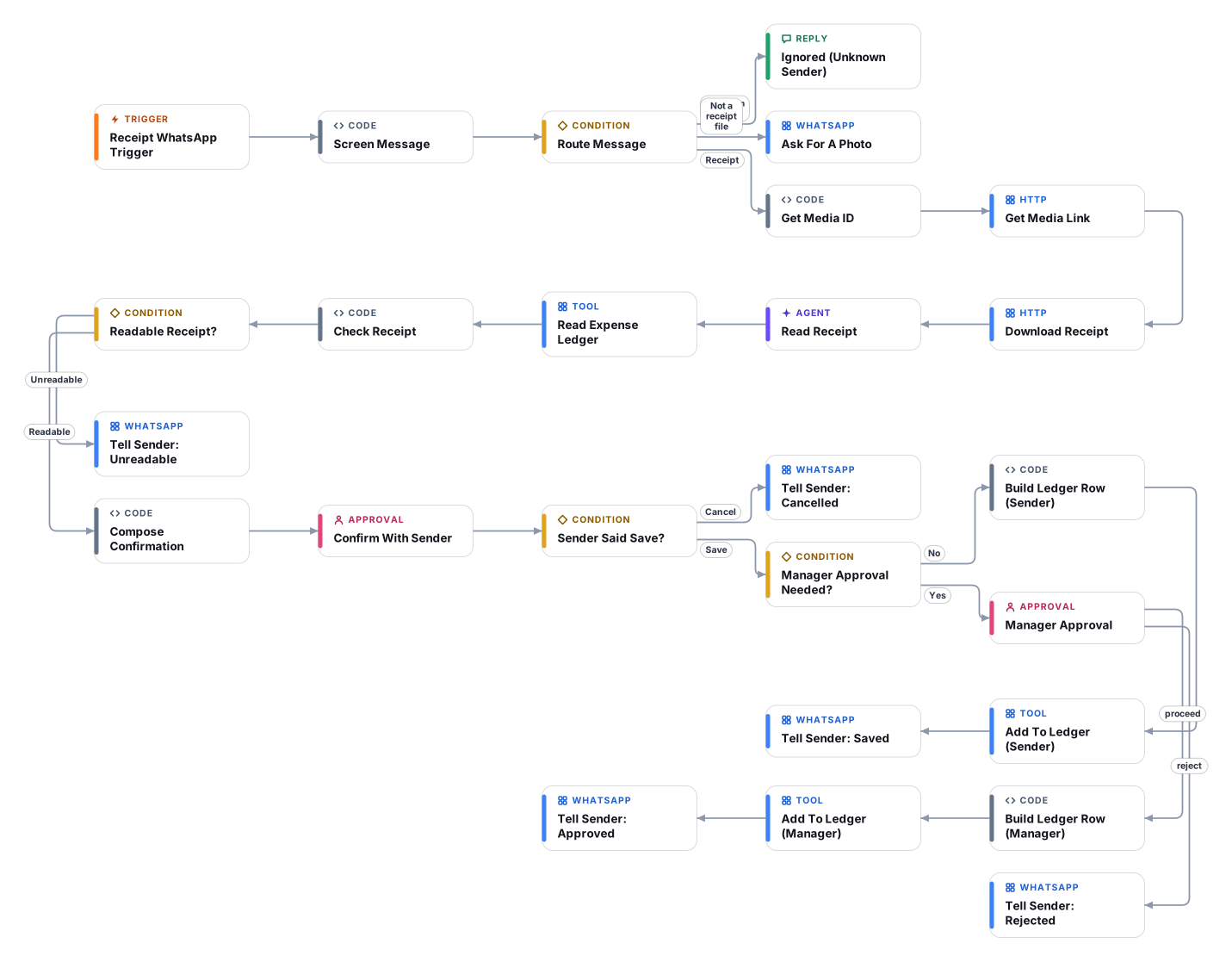
Receipts get lost in pockets and chat threads. With this workflow an employee simply sends a photo or PDF of a receipt to your WhatsApp Business number. A vision model reads the merchant, date, currency, tax and total from the image, in English or Arabic, and picks one category from a list you define. It copies only what is printed: if the total is unreadable the employee is asked for a clearer photo and nothing is saved.
Code then checks the result: arithmetic, future or very old dates, a category that is not on your list, low confidence and possible duplicates (same merchant, date and total already in the ledger). The employee confirms the entry with a Save or Cancel button on WhatsApp. Receipts at or above an approval limit you set, low-confidence reads and suspected duplicates also wait for a manager in the Cadrix approval inbox. Only confirmed entries are appended to your Google Sheet.
Only phone numbers on your allow-list can submit expenses, so the number can be shared safely in a team. The flow needs a WhatsApp Business Cloud API setup (Meta) and one access token to download the pictures; there is no separate accounting-system connector, the ledger is a plain Google Sheet you can import into Zoho Books, Odoo or Excel.
The WhatsApp trigger starts the flow for each incoming message. Numbers that are not on your allow-list are ignored without a reply.
Two HTTP steps ask the WhatsApp Cloud API for the media link and download the image or PDF, authenticated with your access token credential.
A vision model copies merchant, date, tax and total as printed and chooses one category from your list. Unreadable receipts are bounced back to the sender.
Code verifies the numbers and dates, normalises the category, looks for duplicates in your ledger and decides whether a manager must approve.
The employee gets a summary with Save and Cancel buttons. Cancel stops everything.
Amounts at or above your limit, low-confidence reads and possible duplicates go to a manager in the approval inbox before they are written.
Confirmed expenses are appended to your Google Sheet with the flags and who approved them, and the employee is told it was saved.
Anyone can read this page. Deploying the template into your workspace needs a Pro, Team or Enterprise plan. Starter workspaces can browse the library but cannot deploy templates. See plans.
You will connect OpenRouter API key, WhatsApp App (for the trigger), WhatsApp API (for replies), Google Sheets OAuth and fill in a few settings. Setup takes about 40 minutes. Your credentials stay in your own workspace.
Yes. Using the template creates a normal workflow in your workspace on the visual canvas. Rename it, edit any step, add approvals, test it and run it like any other workflow. It counts toward your plan’s workflow limit.
No. This template includes a human approval step, so the workflow pauses and waits for a person before the action goes ahead. Every decision is kept in the run history.
More workflows teams use alongside this one.
Reads PDF or scanned invoices from a mailbox, checks the numbers, and logs each one to Google Sheets only after a person approves it.
OpUpload a PDF, scan or photo to a Document Store, name the fields you need, and get a checked Excel file. Doubtful values go to a human.
Checks your receivables sheet every day, drafts courteous WhatsApp or email reminders, and sends them only after approval. Dry run is on by default.

 Sc+1
Every template is open to read. Deploying one into your workspace needs a Pro, Team or Enterprise plan; Starter workspaces can browse the whole library.