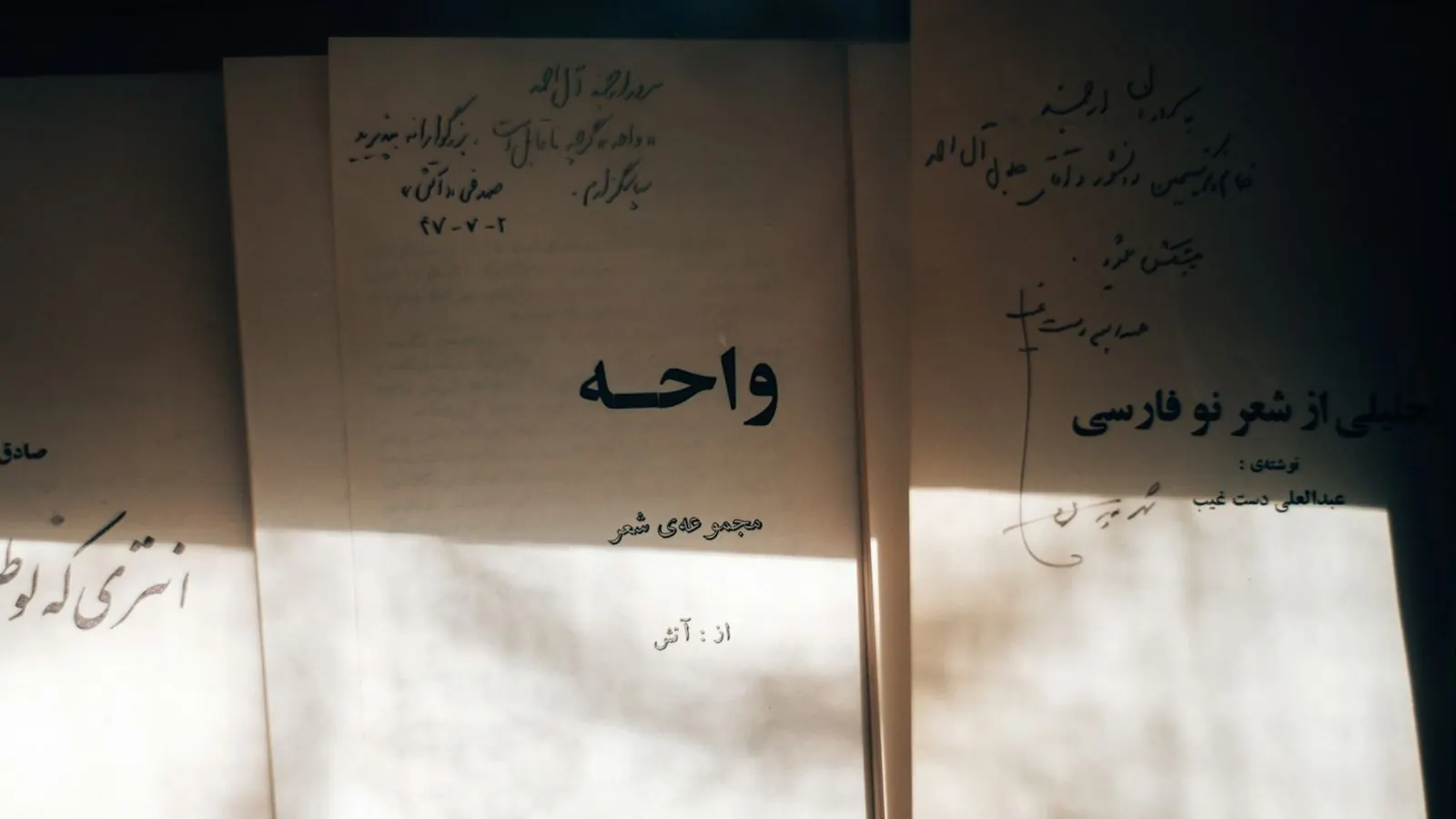
Many extraction demos use a clean English invoice. Real intake in the Gulf looks different: a scanned trade licence with a stamp over the text, a contract with Arabic and English columns side by side, a handwritten note in the margin. If your workflow only handles clean text, it will work in the demo and fail in the inbox.
This post is a practical design for extracting fields from that kind of document, with a person where the risk is.
Step 0: know what kind of PDF you have#
Two files can both be "PDFs" and need different handling.
- Digital PDFs contain text. Extraction can read it directly, quickly and cheaply, though Arabic text in some PDFs is stored in an order or form that does not copy cleanly.
- Scanned PDFs are pictures of pages. There is no text to read until something recognises the characters. A text-only extractor will return nothing, or very little, without telling you anything is wrong.
Make that check the first step in the workflow. If a file yields almost no text, send it down the scan path instead of carrying on with empty content.
The scan path: read the page as an image#
For scans, you have two broad choices: a dedicated OCR engine, or a vision-capable model that reads the page image directly.
OpenRouter's PDF documentation, for example, lists several processing engines. It describes mistral-ocr as the best choice for scanned documents and PDFs with images, a free Cloudflare conversion engine for text-based PDFs, and a native option that sends the file directly to models that accept files. If you do not choose one, it uses the model's native file handling when available and otherwise the OCR engine. Pricing is listed per page for the OCR engine and changes, so check the current page.
In Cadrix, the PDF File loader has an extraction mode that sends pages to a vision model through your OpenRouter connection, so scanned pages are read as images instead of failing silently. Use it where a document may be scanned, and keep the text mode for digital files where it is cheaper.
Which engine is most accurate on your documents is an empirical question. Test with your own files, including your worst ones.
What goes wrong with Arabic#
These are common failures in extraction pipelines, none specific to any one product:
Mixed direction. Arabic runs right to left, but numbers, Latin brand names and email addresses inside the same line run left to right. Extractors can scramble the order in a mixed line. Always spot-check lines that mix scripts.
Digits. Arabic-Indic digits (U+0660 to U+0669) and Extended Arabic-Indic digits (U+06F0 to U+06F9) are different characters from 0 to 9. Wikipedia's article on Eastern Arabic numerals notes that the UAE uses the Eastern forms alongside Western ones, while Saudi Arabia increasingly favours Western numerals. A date or an amount may arrive in either. Normalise digits before you compare, sum or store them.
Names. The same person's name can appear in Arabic script on one page and several different Latin spellings on another. Do not use exact string matching to decide it is the same person. Store both versions and match with care.
Dates. Documents may carry Gregorian dates, Hijri dates or both. Extract the date as written, then convert it in a separate, testable step, and record which calendar the source used.
Stamps, signatures and handwriting. Text under a stamp is often unreadable. Handwriting is worse. These are exactly the fields to route to a person.
The workflow#
- Intake. Start from an email attachment or an upload. Record the original file and the sender.
- Detect type. Try text extraction. If the result is nearly empty, mark the file as a scan.
- Extract text. Use text mode for digital files and vision mode for scans.
- Extract fields. An agent pulls out the fields you need, such as parties, dates, amounts, registration numbers, and returns structured output. Tell it to use null for anything it cannot read rather than guessing, and to return the original text next to each normalised value.
- Validate mechanically. A Condition or a short JavaScript step checks what can be checked: required fields present, dates parse, amounts are numbers, the sum of line items matches the total, a registration number matches an expected pattern.
- Route doubts to a person. Missing fields, failed checks or low-confidence reads go to a Human Input step. Show the reviewer the original page next to the extracted values.
- Write. Only validated or approved values go into your sheet, database or downstream system. Keep the original file link with the record.
- Log. The run trace keeps each step's input and output, so you can see what was read from which page.
Test it with documents that hurt#
Build a test set before you trust it. Include:
- a clean digital Arabic PDF,
- a bilingual contract in columns,
- a poor scan at an angle,
- a page with a stamp over a key field,
- a document with Eastern Arabic digits,
- a document in a language you did not plan for.
Write the expected values by hand. Run the set, read the failures and decide for each field whether to improve the instructions, change the extraction mode, or always send that field to a person. A field that is read wrongly one time in twenty and drives a payment should always have a human check.
Privacy#
Identity documents, trade licences and contracts contain personal and commercial data. Decide where the files are stored, who can open the run history, how long you keep it, and whether the content is sent to a model provider that is acceptable under your own policies. Those are your decisions to make with your legal and security teams. Where data must stay in a particular country, check the model provider's terms before you pick a vision engine.
Where the human goes. On every field that drives money or identity, such as amounts, parties, registration numbers and dates of validity, show the reviewer the page and the extracted value side by side. Let them approve, correct or reject. Low-risk fields can pass on mechanical checks alone, with a monthly sample review.
Sources#
- OpenRouter documentation, "PDF inputs": https://openrouter.ai/docs/guides/overview/multimodal/pdfs
- Wikipedia, "Eastern Arabic numerals": https://en.wikipedia.org/wiki/Eastern_Arabic_numerals